
Key Takeaways
- Stockfish is the strongest chess engine: free, open-source, and built into Chess.com and Lichess analysis.
- After games, use the arrows and computer analysis; for live games you need a browser extension.
- Use depth 18-20 for post-game review and 12-14 for real-time feedback.
- Don't just watch arrows: for each flagged move, find the idea yourself, then follow the full engine line.
Stockfish is the strongest chess engine ever built: it's completely free, open-source, and available on every platform. But most players either don't use it at all, or open it after every game and come away confused.
This guide covers everything: what Stockfish is, how to use it on Chess.com and Lichess, how to use it during a live game, what depth settings to use, and how to actually improve from it instead of just watching arrows.
What Is Stockfish?
Stockfish is an open-source chess engine that calculates the strongest possible move in any chess position. It's been the top-ranked chess engine in the world for most of the past decade: rated above 3600 on the CCRL rating list, far beyond any human's level. (Here's a plain-English explainer of what Stockfish is and how it works.)
"Open-source" means it's free to use, modify, and distribute. Chess.com, Lichess, and dozens of other platforms run Stockfish under the hood for their analysis tools.
How to Use Stockfish on Chess.com
After any game on Chess.com:
- Click "Analysis" in the game panel below the board
- Chess.com runs Stockfish through your game automatically
- Blue arrows show the engine's suggested move at each position
- The accuracy percentage shows how closely each player followed engine-best moves
For deeper analysis, use "Computer Analysis": this runs Stockfish at higher depth and gives you a full game report with blunders, mistakes, and inaccuracies marked.
You can also use Stockfish on the Chess.com analysis board for any position: paste a FEN, load a game from the database, or step through one of your own games move by move.
How to Use Stockfish on Lichess
Lichess offers free Stockfish analysis for all games:
- Open any completed game from your history
- Click the computer chip icon in the analysis toolbar
- Use the depth slider to increase analysis depth
- The eval bar and best-move arrows appear on the board
Lichess also has a "Local Analysis" option that runs Stockfish directly in your browser, no server required, completely private. If you'd rather skip installs altogether, here's how to run Stockfish online with no download.
How to Use Stockfish During a Live Game
This is what most guides skip entirely. Both Chess.com and Lichess disable engine analysis during active rated games: their built-in engines only show suggestions after the game ends.
To get real-time Stockfish arrows during a live game, you need a browser extension. ChessSolve runs Stockfish analysis in the background and overlays candidate move arrows directly on your Chess.com or Lichess board as you play.
How to set it up:
- Install ChessSolve from the Chrome Web Store or Firefox Add-ons (free)
- Open Chess.com or Lichess and start a practice game or game against a bot
- Click the ChessSolve icon in your toolbar and press Start Analysis
- Stockfish arrows appear on the board in real time: updated after every move
The arrows show the top 3 candidate moves, color-coded by strength. The eval bar shows the position assessment. Move classification badges appear after each move.
Note: Real-time engine assistance is only appropriate for practice games and training. Using it in rated competitive games violates the terms of service of Chess.com and Lichess.
Read the full guide: How to Use Stockfish During a Live Game
Understanding Stockfish's Output
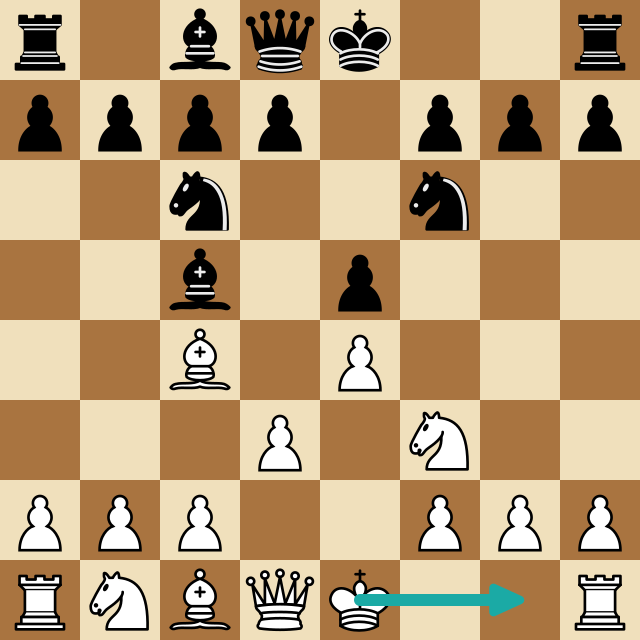
When Stockfish analyzes a position, it shows:
Evaluation score, A number in pawns. Positive means White is better, negative means Black is better. +1.0 means White has roughly a one-pawn advantage. Beyond ±3.0, one side is usually winning. A forced mate shows as M5 (mate in 5 moves).
Depth, How many half-moves ahead Stockfish has calculated. Depth 20 means roughly 20 moves deep in the best line. Higher depth = more accurate but slower.
Best move, The single top recommendation for the current position.
Principal Variation (PV), The full sequence of best moves for both sides. This is the "engine line" you'll see in analysis.
Nodes, The number of positions evaluated. A measure of calculation volume.
Here's a quick reference for reading the evaluation number:
| Evaluation | What it means |
|---|---|
| 0.0 to ±0.5 | Roughly equal |
| ±0.5 to ±1.5 | A slight edge |
| ±1.5 to ±3.0 | A clear advantage |
| beyond ±3.0 | Usually winning |
| M5 | Forced mate in 5 moves |
What Stockfish Depth Should I Use?
| Depth | Speed | Good for |
|---|---|---|
| 10-14 | Very fast | Quick blunder check, real-time feedback |
| 15-20 | Moderate | Standard post-game analysis |
| 20-25 | Slow | Complex positions, endgame technique |
| 25+ | Very slow | Opening preparation, critical positions |
For most players under 1800 Elo: depth 18-20 is more than enough for post-game review. You won't be making moves that only become wrong at depth 24+. For real-time analysis during a game, depth 12-14 is fast enough to keep up with your thinking.
In our own testing across thousands of analyzed games, the evaluation barely moves between depth 20 and depth 30 in the positions club players actually reach: the extra depth mostly matters in sharp, forcing lines. Chasing maximum depth on every move is wasted time; spend it understanding the moves instead.
How to Actually Learn From Stockfish
This is the part most players skip. Watching engine suggestions is nearly useless unless you engage with them actively.
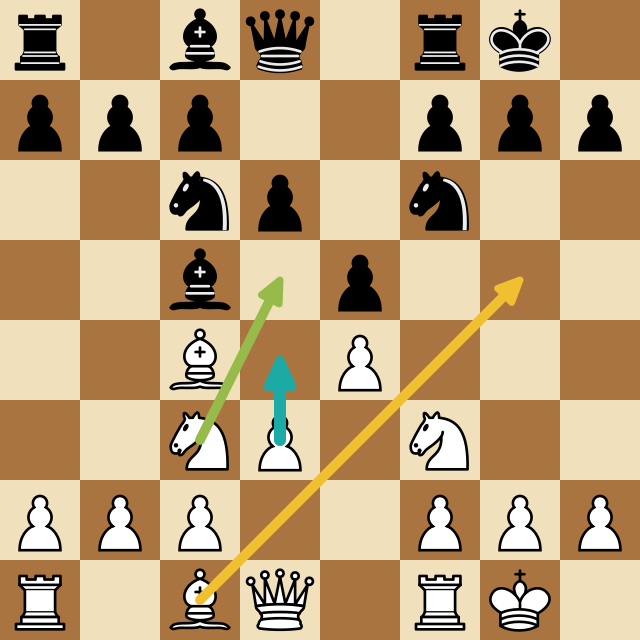
The wrong way: Open the game, see "you blundered on move 23, Nf5 was best," close the analysis, move on. You've learned nothing except that you blundered.
The right way: For every significant move the engine flags:
- Before looking at the continuation: try to find the idea yourself. Why is Nf5 better? What does it threaten?
- Play through the principal variation: don't just note the first move. Follow the line 4-5 moves and understand the resulting position.
- Compare to your move: what specifically did you miss? Was it a calculation error, a pattern you haven't seen, or a positional concept you don't understand yet?
The analysis session isn't a performance review. It's a pattern-building session. Every time you understand why a move is best, you're adding a pattern to your intuition.
The most effective way to improve with it: after each game, identify the 2-3 positions where your evaluation diverged most from the engine, and for each one try to understand why the engine's move was better before reading the continuation. That's the same discipline behind analyzing your games properly.
Stockfish is the most powerful free tool available to any improving chess player. Used correctly (with active engagement rather than passive observation) it will show you the patterns and ideas that separate your current level from the next one.
If you want to use it during live games for training, ChessSolve brings Stockfish arrows to your Chess.com and Lichess board in real time, free, with no setup required.
Frequently Asked Questions
What is Stockfish used for in chess?
Analyzing positions and finding the strongest moves. Players use it to review games, identify mistakes, study openings, and train pattern recognition. It powers the analysis tools on Chess.com, Lichess, and most other platforms.
Is Stockfish free?
Yes. Stockfish is completely free and open-source. You can use it through Chess.com's analysis, Lichess's analysis, or directly in your browser through tools like ChessSolve.
What is a good Stockfish evaluation score?
Evaluations between -0.5 and +0.5 are roughly equal. An advantage of ±1.0 to ±2.0 is meaningful but still playable. Beyond ±3.0 one side is usually clearly winning. A forced checkmate shows as M followed by the number of moves.
Can you use Stockfish during a chess game?
For practice games and training, yes, a tool like ChessSolve runs Stockfish live on your board. Using engine assistance during rated competitive games is against the rules on Chess.com and Lichess.
Can you use Stockfish without downloading it?
Yes. Stockfish runs inside Chess.com and Lichess analysis with nothing to install, and browser tools like ChessSolve give you a full online Stockfish engine: paste a position and get the best move, no download required.
Analyze any game or position free
Paste a PGN or FEN into ChessSolve's free Stockfish analysis board and get best-move arrows and a live evaluation bar — no account needed.
Open the Analysis Board